Wacom Bamboo Pen And Touch Review

January 8, 2012 by admin  
Filed under Reviews, Wacom

Wacom Bamboo Create Pen Tablet (CTH670) Wacom Bamboo Create Pen Tablet (CTH670)
List Price: $199.95
Sale Price: Too low to display
  Eligible for free shipping!
Availability: Usually ships in 1-2 business days

In 2011, Wacom revamped their Bamboo tablet range with a new, sleep design and an all round better product release. The new Wacom Bamboo Pen, or Bamboo Pen And Touch models, both available in different sizes and colors, have shown good sales - and there is a reason why. They are the best consumer graphics tablet for Mac and PC available at the moment!

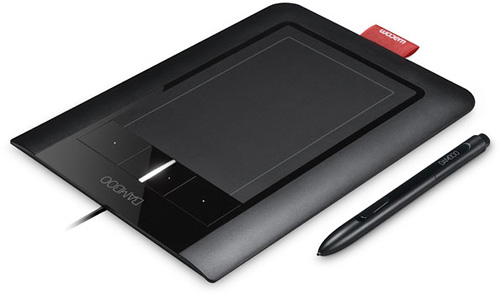
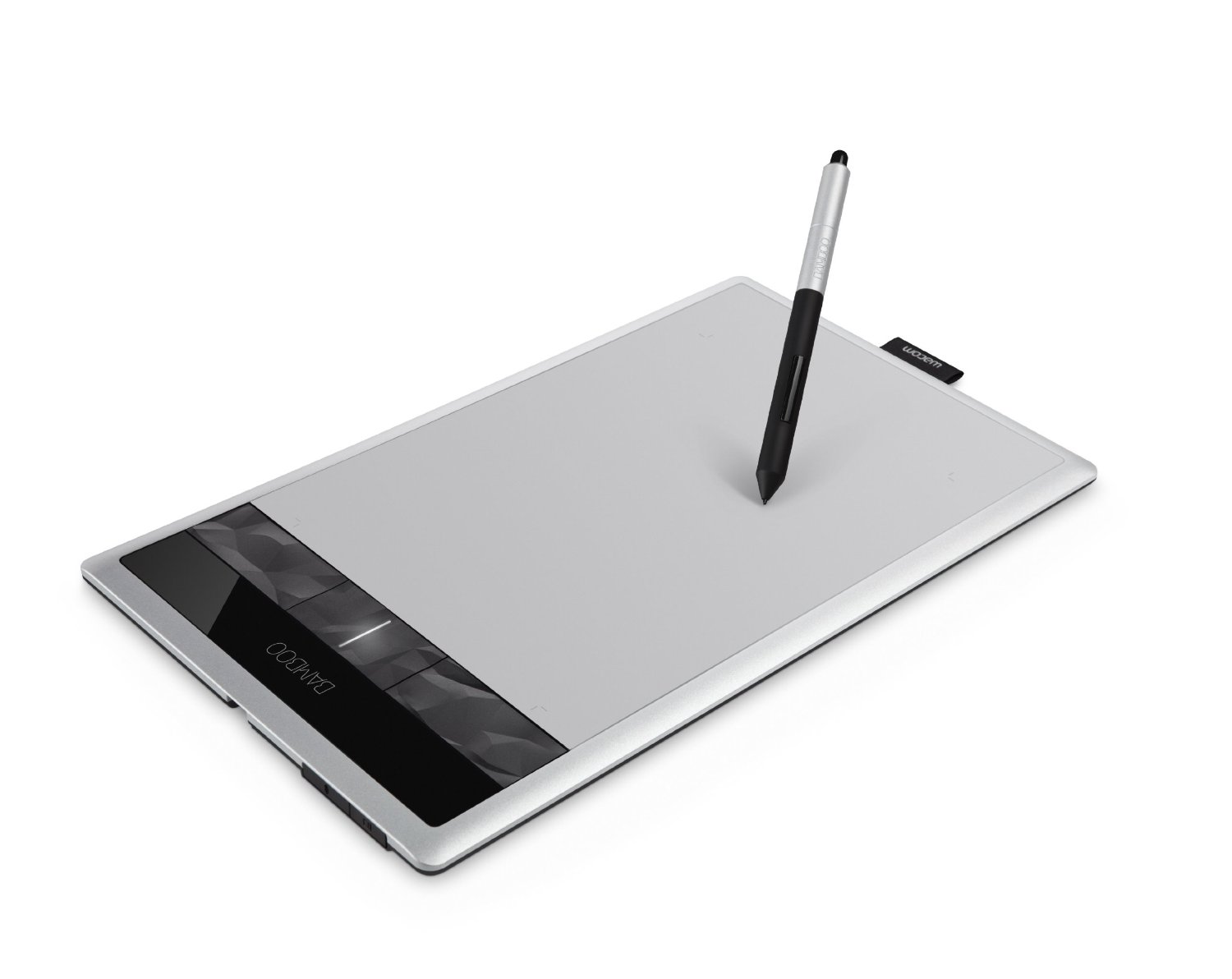
The new Bamboo models are thinner than the previous versions and have been redesigned to allow digital artists to work with maximum comfort whilst also allowing them to be creative at the same time. There are 4 buttons on the Bamboo Pen and Touch that allow you to turn the touch facility on or off, right click the mouse to bring up the contextual menu in which ever application you are using and bring up the "Bamboo Dock" application. The buttons all work well - after all, they just need to "click" and they have been textured slightly so you can easily determine where they are when drawing or holding the tablet.

Wacom Bamboo Craft Pen and Touch Graphics Tablet Fun AU
US $247.78
Wacom Bamboo Pen and Touch Graphics Tablet Small NEW
US $144.36
Wacom Bamboo Pen and Touch Tablet
US $37.00
Wacom Bamboo Fun Pen and Touch Graphics Tablet NEW AU
US $242.39
Wacom Bamboo Craft Pen And Touch Tablet
US $99.00
New Wacom Bamboo CTH461 Craft Pen And Touch Tablet
US $124.99

Installation

Installation is no problem. In fact, when I plugged this into my Mac, it worked straight away with no need to add additional software! I did install the application from the CD though as I thought it would most likely add extra stuff for Adobe products. On a Windows PC, I would expect that you would need to install the drivers before anything could happen. The provided USB cable is nice and thin too, which cuts down on the bulk of the device. Next to the USB connection on the tablet is a small cover than can be removed to add a wireless (bluetooth) connector if you want to be totally portable from your Mac or PC. This would only be for comfort really.

Software

The Bamboo Dock application allows you to install small "apps" to use with your Bamboo tablet. These can range from simple games to full blown painting and drawing apps, such as SumoPaint, which is free on the Mac. I guess this is Wacom's idea of their own "App Store" and I expect they make some cash from it somehow. To be honest, I usually have this turned off when drawing, but I can see the appeal for some users. As with other graphics tablets, you can turn it around to be a left handed version if you want. When you install the drivers and software, it will ask for your handedness and assign itself accordingly.

Pen And Touch

The pen itself is the usual Wacom design and is light, easy to use and features 1024 levels of pressure sensitivity. Flip the pen over and Photoshop turns the selected tool to the eraser for you - very clever stuff. You also get some replacement nibs too, as I will expect that they will wear down over time. The tablet surface has a slight texture to it too, probably to allow some kind of feedback whilst drawing. My only complaint would be that the pen has to be very close to the surface to be detected. I am sure this was not the case with an older Wacom model I had back in 1998. When you are not using the pen, it slides snugly into the small ribbon tab at the end of the tablet - perfect if you are using it at home with little children around who like to play!

The touch feature is very handy and was not something that I would have thought I would have used, but I am glad I opted to buy the model with touch added. When working with Photoshop, for example, you can draw, then use 2 fingers on the tablet to pinch (resize) or pan around the document. Very handy indeed! Saves you fro reaching for the mouse all the time. You can also use the panel as a touch interface for all other operating system commands on a Mac, so you can flick through photos with your finger and stuff like that. If you are thinking of buying one of these tablets, then I suggest you spend that little extra and choose the touch version if you can. It all feels very natural if you have used an iPad before.

Should I buy the Wacom Bamboo Pen And Touch graphics tablet?

To conclude, the newer models of the Wacom Bamboo range are excellent, cheap, funky graphics tablets that deliver 100% of what you would expect from the leading manufacturer in this area. Although not as good as the Wacom Intuous range, or as "professional" as the interactive pen display models, this tablet is perfect for the home user who is interested in photo editing or digital art. The quality is solid, the design is perfect and you will find yourself creating digital masterpieces in no time at all. If you don't mind spending a little more money, the Wacom Bamboo Pen And Touch graphics tablet is the perfect choice.

Incoming search terms:

graphic tablet reviews 2012, graphics tablet reviews 2012, graphics tablets reviews 2012, bamboo pen & touch reviews, wacom bamboo pen and touch review, wacom bamboo fun pen & touch small vs medium, wacom bamboo pen & touch, are the new wacom tablets better, wacom bamboo review, wacom bamboo sale

Wacom Bamboo Pen And Touch Review

October 20, 2009 by admin  
Filed under Wacom

Wacom Bamboo Pen and Touch Wacom Bamboo Pen and Touch
List Price: $99.95
Sale Price: $69.99
You save: $29.96 (30%)
  Eligible for free shipping!
Availability: Usually ships in 1-2 business days

The Wacom Bamboo Pen and Touch is the latest consumer graphics tablet, designed to fit on your desktop and possibly take the place of your mouse. The main difference with this model is that the Bamboo Pen and Touch also allows you to use multi touch finger gestures as well as employ the cordless stylus pen as a normal graphics tablet.

Wacom are treading on the toes of Apple with this new product, as the latest Macbook’s have multi touch trackpads built in already - so if you own one of these models, the Wacom Pen and Touch may only be useful as the Wacom Pen.

The Product:
The device sports all of the best design ideals as you would expect from Wacom. 1024 levels of pressure sensitivity, a built in non-detachable USB connection as well as a really nice, slim design with a touch wheel (akin to the old iPod’s) and 4 programable buttons that you can use to access your applications or menu options. One point to note is that, unlike the Wacom Bamboo models, the buttons have been moved from the top of the tablet to the side, which allows for a better drawing area.

The pen has also been redesigned slightly from the Wacom Bamboo models and it much easier to hold and is more comfortable to use. The buttons on the pen are easier to operate and the overall “drawing feel” is much improved.

Touch me!
The touch portion of the USB graphics tablet works well and is very similar to that offered by Apple on their newer Macbook range. A maximum of 2 fingers can be used to pinch, rotate and scroll around a document or image. If you have used an iPhone before, you will get the idea. The inclusion of this type of interface is a good idea and I found myself using it quite often for rotating and scrolling, but only when I had the tablet in front of me, rather than to the side. I guess that’s what you get when you have used a laptop for so long!

Should I buy a Wacom Bamboo Pen And Touch?
Overall, the new Wacom Touch and Pen is a great tablet to buy. You can also get a model which is “pen only” or “touch only” for around 2 thirds of the price, but I would go for the full version as you have the best of both worlds. There are larger models available from Wacom as well as a slew of other, cheaper models from makers such as Genius and Adesso.

It pays to remember though, Wacom are the industry leader in this technology - and you get what you pay for.

Wacom Bamboo Craft Pen and Touch Graphics Tablet Fun AU
US $247.78
Wacom Bamboo Pen and Touch Graphics Tablet Small NEW
US $144.36
Wacom Bamboo Pen and Touch Tablet
US $37.00
Wacom Bamboo Fun Pen and Touch Graphics Tablet NEW AU
US $242.39
Wacom Bamboo Craft Pen And Touch Tablet
US $99.00
New Wacom Bamboo CTH461 Craft Pen And Touch Tablet
US $124.99
Wacom Bamboo Craft Pen and Touch Fun Graphics Tablet USB CTH 661 Software Bundle
US $247.78
Wacom Bamboo Fun Pen and Touch Graphics Tablet USB CTH 661 S0 Software Bundle
US $242.39
WACOM Bamboo Craft Pen And Touch Tablet CTH461 NEW
US $129.00
Wacom Bamboo Pen and Touch Tablet
US $33.00

Incoming search terms:

bamboo pen and touch vs genius, adesso vs bamboo tablets, wacom bamboo genius pen and touch, wacom bamboo pen vs genius, wacom bamboo touch and pen vs genius, wacom pen and touch review, wacom pen and touch reviews vs fun tablet, wacom vs adesso vs genius, Wacom vs VisTablet, reviewbamboo pc pen best for home

Wacom Bamboo Graphics Tablet

August 13, 2009 by admin  
Filed under Reviews, Wacom

Wacom Bamboo Pen Tablet Wacom Bamboo Pen Tablet
List Price: $79.95
Sale Price: $60.99
You save: $18.96 (24%)
  Eligible for free shipping!
Availability: Usually ships in 1-2 business days

If you are looking to start using a consumer Graphics Tablet or are a younger computer user, then the Wacom Bamboo tablet will definitely go a long way to fit your needs and requirements. Designed to be small, portable, quick and easy to use, the Wacom Bamboo can be used for many different applications and you can use it to get more out of your computer.

If you want to use it for producing digital artwork in a graphics program, then the Bamboo will be an excellent choice. The widescreen 3.7 x 5.8 inch active area will mean that your pen strokes will be transfered to the screen with 512 levels of pressure sensitivity pin point accuracy. Add to this the ability to use the built in Wacom “Touch Ring” to scroll and zoom in and out of images and you will soon be creating masterpieces along with the thousands of other Wacom Bamboo users.

The Wacom Bamboso also houses 4 programable function keys that can be assigned to macros, menu items or mouse functions. This will help you speed through your application and will make creating digital art a breeze.

The Wacom Bamboo is also an excellent USB graphics tablet for taking with you to work,school or college for taking notes, annotating documents or even simply signing your emails. Designed with Windows Vista in mind, but also supporting Windows XP and Mac OS X, the Wacom Bamboo tablet is reinventing the pen for the 21st century.

Wacom Bamboo Pen Tablet
US $23.50
Wacom Bamboo Fun Tablet only Model CTE 450
US $26.00
Wacom Bamboo Pen Tablet CTL 460 with Anime Studio Debut 8
US $66.00
Wacom Bamboo Fun Medium Tablet Black
US $46.00
DIY Art Game Design LOT Wacom Bamboo Fun accessories software manual pen tips
US $2.25
wacom bamboo cth461 craft pen touch tablet computer photos scrapbooking software
US $36.00

The tablet connects to your computer via a standard USB connection and is supplied with a driver CD for Windows and Mac computers. Also included is a CD containing an application suite for Windows computers as well as a detailed manual instructing you how to use your new tablet.

If this is your first tablet, then you cannot go wrong with the excellent low price, the great specification and the ease of use.

Detail Value
Model Name Bamboo
Includes Pen Yes
Includes Wacom 3D Mouse No
Widescreen format Yes
Supprts left and right handed users Yes
Active Area Size (inches) 3.7 x 5.8
Physical dimensions (inches) 7.875 x 7.25 x .5
Pressure sensitivity levels 512
Express Keys 4

What size graphics tablet should I buy

August 12, 2009 by admin  
Filed under Guides

The various makers and manufacturers of graphics tablets and interactive pen displays have realised that people want to use them for different things. Some people use them to produce high quality, commercial images used for advertising, print and film, where as others will be used by part time creative people or children.

The smaller and cheaper graphics tablets such as the Wacom Bamboo model have been produced with the younger market in mind. A small, colored tablet that allows even the smallest computer artist to unleash their creativity onto the screen. Wacom have identified that this market needs a smaller canvas to work on and therefore the smaller tablets come in sizes of around 6 x 4 inches active area. This is the area where you can use the pen to draw.

These smaller tablets are perfect for a first time user or someone who may only want to use them to annotate documents or create images now and then. For the person who wants to use the tablet more often, they are supplied in a series of larger sizes, from 6 x 4 inches up to 18 x 12 inches. These graphics tablets are designed with the professional in mind and offer a larger drawing area which in turn will provide a higher resolution output to the screen. The larger the graphics tablet, the more detailed your work will become. Although it may be tempting to start with a larger tablet, if you are a first time user, it might be prudent to start with something smaller.

The next sizes and levels up from these graphics tablets will be the interactive pen displays that allow you to draw directly onto a screen as if you were using the application through the tablet. These products do come at a price as they also incorporate the same technology as a TFT screen but the experience of using one means that you can be more tactile with the image and you will produce better results. The largest of these displays allows you to draw directly onto the same size area as a 21 inch monitor. The “active area” is 17 x 12.5 inches which will allow you to really get to grips with creating digital artwork and images.

To conclude this advice, I suggest that if you are younger, a less frequent user of graphics applications or you just want to try your hand at making digital artwork, a smaller graphics tablet is your best choice. However, if you are already a traditional artist looking to transfer to a digital medium, a larger digital pen display would suit you better as it will be easier to work with based on your current skills and experience.

Incoming search terms:

what size graphics tablet should i get, best size graphics tablet, what size graphics tablet, graphic tablet sizes, size of graphic tablet, graphic tablet size, what size of drawing tablet, small vs large graphics tablet size, what size drawing tablet, what size drawing tablet is best